
Using ChatGPT from OpenAI
ChatGPT Resource Hub
ChatGPT Edu: General Information
ChatGPT Edu is the UNC System Office workspace for using ChatGPT in approved work contexts. It can help employees draft, summarize, brainstorm, organize information, analyze appropriate documents, and improve everyday productivity.
What ChatGPT Edu is
ChatGPT Edu is an education-focused ChatGPT workspace used by the UNC System Office. You can ask questions, request drafts, summarize appropriate content, brainstorm ideas, create outlines, analyze approved files, and think through next steps based on the information you provide.
It can support everyday work, but it does not replace your judgment. Employees remain responsible for checking accuracy, tone, completeness, assumptions, sources, and whether the output is appropriate for the intended use.
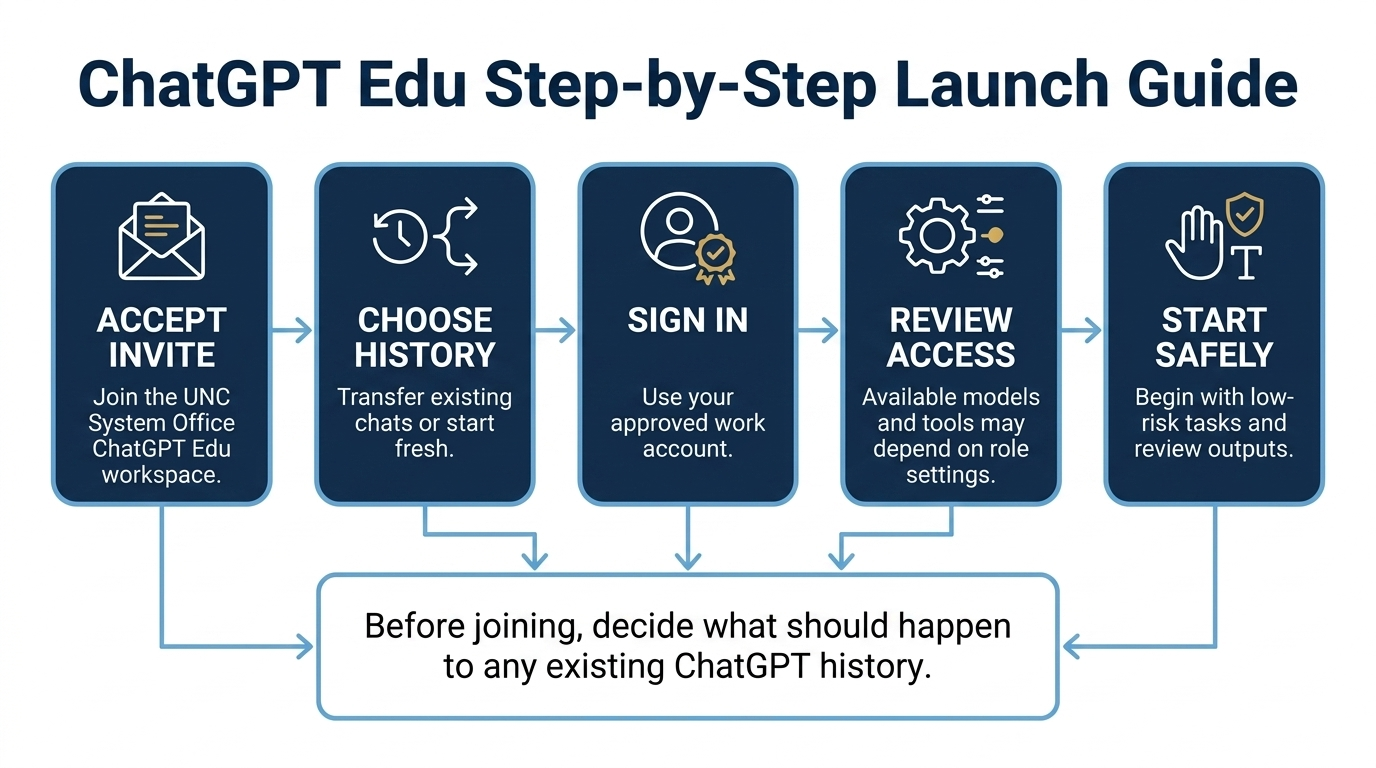
ChatGPT Edu Step-by-Step Launch Guide
When joining the UNC System Office ChatGPT Edu workspace, pay close attention to the setup prompts. If you already have ChatGPT history, you may be asked whether you want to transfer existing content or start fresh.
At a glance
Use it for first-pass work
Drafting, summarizing, brainstorming, outlining, planning, explaining, analysis support, and organizing work that you can review.
Give it clear context
Include the goal, audience, tone, constraints, source text when appropriate, and the format you want back.
Review before use
Check facts, policy references, names, numbers, links, sources, tone, and whether the answer fits the situation.
What ChatGPT can help with
Writing and editing
Draft emails, revise messages, improve tone, and make content easier to understand.
Summarizing and organizing
Condense appropriate documents, notes, or public information into key points, decisions, next steps, agendas, or checklists.
Learning and explanation
Ask for plain-language explanations, examples, glossaries, comparisons, or practice questions for unfamiliar concepts.
Document and file support
When appropriate, use supported files for summarizing, comparing, extracting, or analyzing information. Do not upload information that should not be used with AI tools.
Use appropriate information
Do not enter, paste, upload, or expose restricted, regulated, or inappropriate data in AI tools. When you are unsure whether information is appropriate to use with ChatGPT Edu, pause and ask before proceeding.
Simple first steps
- Start with a low-risk task. Try rewriting an email, summarizing public information, creating a checklist, or drafting a meeting agenda.
- Give clear instructions. Include the task, audience, purpose, tone, format, and helpful context.
- Review the result. Check accuracy, tone, completeness, data sensitivity, assumptions, and whether any facts or sources need verification.
Basic prompt formula
I need help with [task]. The audience is [audience]. The purpose is [purpose]. Please use [tone or format]. Here is the context: [context].
ChatGPT Edu Account Setup
Use this page to understand the setup path that applies to you before joining the UNC System Office ChatGPT Edu workspace. This is especially important if you already have a personal ChatGPT account or existing chat history.
Terminology used on this page
OpenAI is the company and account platform that provides the setup prompts, workspace invitation flow, and account-management messages.
ChatGPT is the AI product employees use. ChatGPT Edu is the education-focused workspace experience the UNC System Office is using for approved work contexts.
Important: decide what happens to existing ChatGPT history
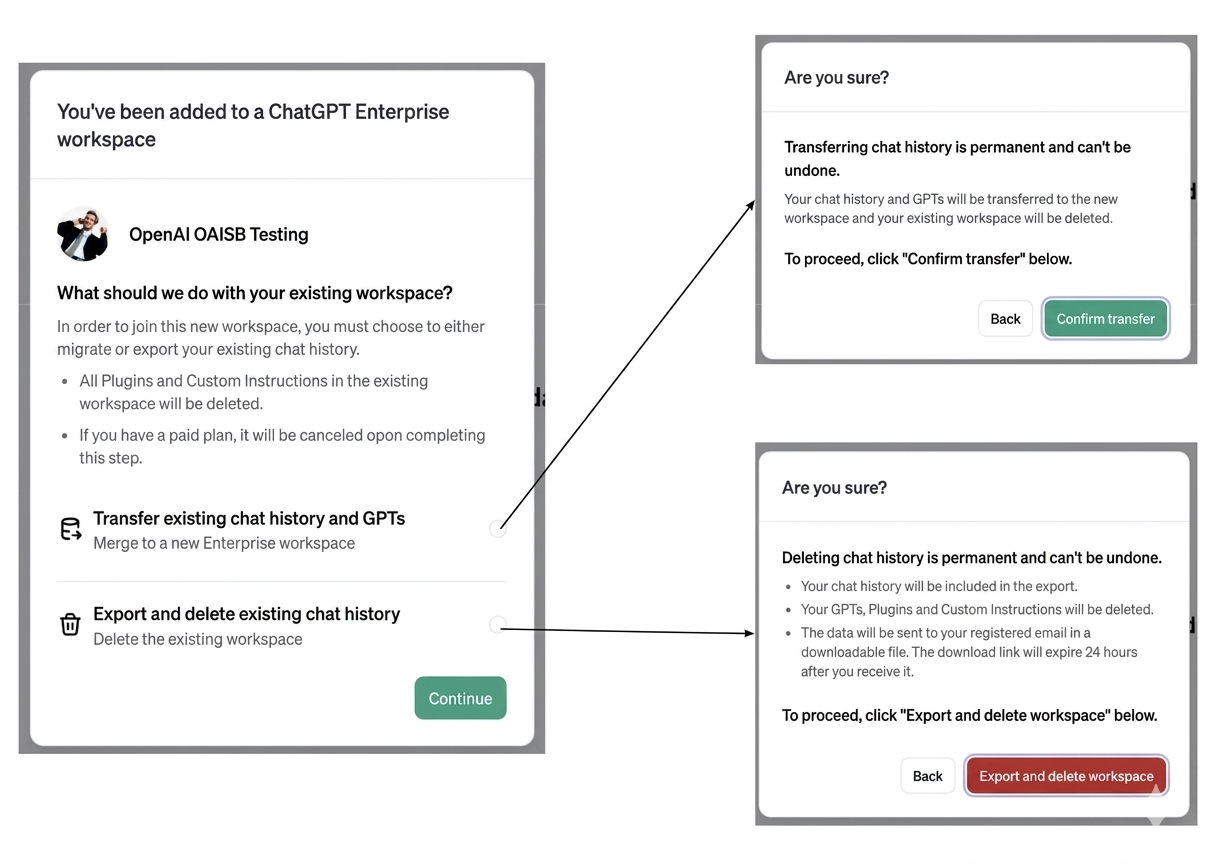
If you already have a ChatGPT account, OpenAI may ask what to do with your existing workspace before you can join the ChatGPT Edu workspace. Read the options carefully before continuing.
You may be able to transfer existing chat history and GPTs into the new workspace, or export and delete the existing workspace to start fresh. Custom instructions, plugins, and specific workspace settings do not transfer.
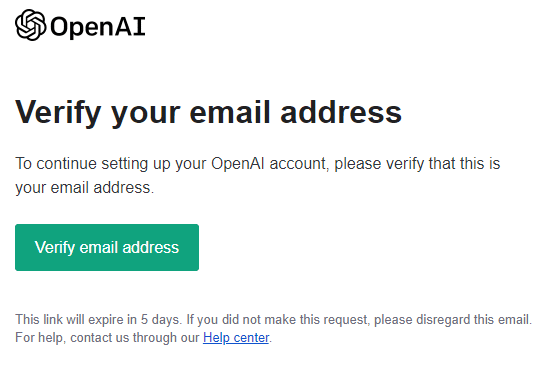
Invitation screen
When you receive an invitation to the UNC System Office ChatGPT Edu workspace, follow the invitation prompt and sign in with the account directed by System Office guidance.
If you already have a ChatGPT account
If OpenAI’s setup flow detects an existing ChatGPT workspace or history, you may see a choice between transferring existing content or starting fresh by exporting and deleting the existing workspace. This step can have permanent consequences.
What does not transfer
OpenAI account prompts may indicate that some items do not transfer when joining a new workspace.
- Custom instructions may be deleted or may not transfer.
- Plugins may be deleted or may not transfer.
- Specific workspace settings may not transfer.
- If you have a paid personal plan, OpenAI may indicate that it will be canceled upon completing the workspace move.
Choose the setup path that applies to you
Option 1: I am new to ChatGPT
Use this option if you do not already use ChatGPT and need to join the UNC System Office ChatGPT Edu workspace for the first time.
Option 2: I already have a ChatGPT account
Use this option if you already have a personal ChatGPT account, existing chat history, or custom GPTs and received an invitation to join the UNC System Office workspace.
Option 1: I am new to ChatGPT
Start here if you are creating or accessing ChatGPT for the first time through the UNC System Office ChatGPT Edu workspace.
New Account
Quick answer: Start with the invitation or access instructions provided by the UNC System Office. Use the email address connected to your System Office access and follow the prompts shown during sign-in.
What to do:
- Look for the official invitation or access instructions from the UNC System Office.
- Use the email address associated with your System Office access.
- Follow the sign-in, sign-up, or authentication prompts shown to you.
- Confirm that you are in the UNC System Office workspace before starting work-related conversations.
Pause if unsure: If you are unsure whether to create a new account, accept an invitation, or use an existing sign-in method, stop and follow the System Office support path before continuing.
Quick answer: Use the email address associated with your UNC System Office ChatGPT access. In most cases, this should be the same email address that received the workspace invitation or access instructions.
What to check:
- Use the email address connected to your System Office access.
- If you received an invitation email, use the email address where that invitation was sent.
- If you are prompted to sign in through an organization-managed login flow, follow the prompts shown to you.
- Do not create a separate account with another email address unless instructed to do so.
Pause if unsure: If you are not sure which email address to use, stop before creating a new account and follow the System Office support path.
Quick answer: Before starting work-related conversations, check that you are working in the UNC System Office workspace or the approved organization workspace.
What to check:
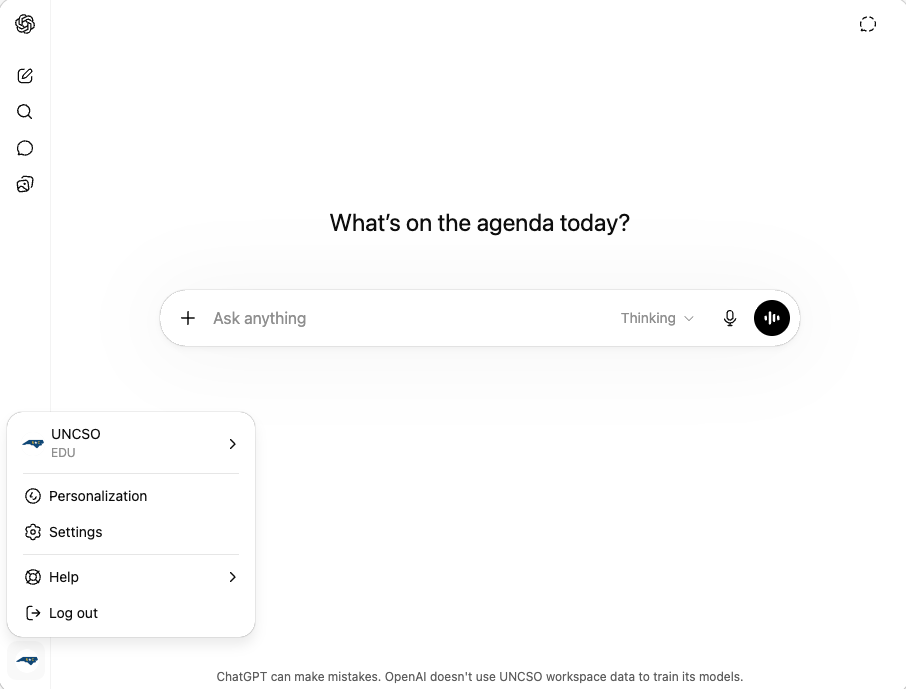
- Look for the workspace name shown in ChatGPT, usually near the profile or workspace menu.
- If you have access to more than one workspace, select the UNC System Office or organization workspace before starting work-related activity.
- Confirm you are in the correct workspace before entering work-related prompts or uploading files.
- If the workspace name does not look right, stop and follow the System Office support path.
Why this matters: Conversations, files, and activity may be associated with the workspace where they are created. Confirming the workspace first helps keep personal and work activity separated.
Quick answer: Start with low-risk tasks, confirm you are in the correct workspace, and review all ChatGPT outputs before using them for work.
Good first uses:
- Drafting or improving non-sensitive text.
- Summarizing public or approved information.
- Creating checklists, outlines, or planning notes.
- Rewriting content for clarity, tone, or audience fit.
- Brainstorming questions, next steps, or communication ideas.
Before you rely on an answer:
- Check that you are using the approved System Office workspace or access path.
- Review the response for accuracy, tone, and completeness.
- Verify facts, dates, numbers, citations, and policy references.
- Do not treat ChatGPT output as final without human review.
Data reminder: Do not enter or upload sensitive, restricted, regulated, or personally identifiable information unless the use is approved. If you are unsure whether a task, file, or type of information is appropriate, pause and follow the System Office support path.
Quick answer: Your sign-in experience may look different depending on how your access was provided and how the UNC System Office workspace is configured.
You may see different steps because:
- Some users may receive an invitation email.
- Some users may be directed through an organization-managed sign-in process.
- Some users may already have a personal ChatGPT account connected to the same email address.
- Workspace access may depend on how the organization has configured provisioning, authentication, or sign-in requirements.
What to do:
- Follow the access instructions provided by the System Office.
- Use the email address associated with your System Office access.
- Read all prompts carefully before creating, switching, or merging anything.
- Confirm that you are in the UNC System Office workspace before beginning work-related activity.
Pause if unsure: If your sign-in screen, invitation, or workspace access does not look like what you expected, stop before creating a separate account or changing workspace settings and follow the System Office support path.
Option 2: I already have a ChatGPT account
Start here if you already have a personal ChatGPT account. OpenAI describes personal and organization workspaces as separate environments, and moving or deleting personal workspace data is a separate action with important implications.
Existing Account
I already have a ChatGPT account. What should I do before joining the UNC System Office workspace?
Quick answer: If you already have a ChatGPT account, review the workspace prompts carefully before joining, switching, or merging anything. You may be able to keep personal and work activity separate.
Before you continue:
- Read the invitation and workspace prompts carefully.
- Confirm whether you are joining the UNC System Office workspace or changing something about your personal account.
- Decide whether you want to keep personal ChatGPT activity separate from work activity.
- Do not merge or move data unless you understand the effect of that action.
Recommended safe path:
- Join or access the workspace only through the approved System Office instructions.
- Keep your personal and work workspace separate unless you have reviewed the merge information.
- Ask for help before making changes that could affect personal chats, files, GPTs, memories, or subscription settings.
Pause if unsure: Do not assume that account, workspace, or data changes can be reversed. If you are unsure, stop and follow the System Office support path before continuing.
Quick answer: Switching workspaces lets you move between available ChatGPT environments. Merging data is a separate action that may move personal workspace data into an organization workspace.
Switching workspaces means:
- You are choosing which workspace or account environment you are currently using.
- Your personal and organization workspaces remain separate.
- Switching does not move or copy chats, files, memory, history, billing, or subscriptions.
- You should confirm the selected workspace before starting work-related conversations.
Merging data means:
- You are taking a separate migration action, not simply switching views.
- Personal workspace data may be moved into the organization workspace.
- The action may have important effects on access, ownership, and future availability of that data.
- You should read all prompts carefully before proceeding.
Important: Do not treat switching as the same thing as merging. If you are unsure which action you are taking, pause and follow the System Office support path before continuing.
Quick answer: Merging a personal workspace into an organization workspace is a significant action. Review all OpenAI prompts carefully before proceeding, and do not merge if you are unsure.
OpenAI describes merging as an action that may:
- Move personal workspace data into the Business or organization workspace.
- Move existing chat history into the Business or organization workspace.
- Move GPTs from the Personal workspace into the Business or organization workspace.
- Delete the Personal workspace after migration.
- Prevent the merge from being undone after it is completed.
Before you merge, consider:
- Whether you want to keep personal and work activity separate.
- Whether any personal chats, files, GPTs, or memories should remain outside the organization workspace.
- Whether you may lose access to migrated data if you later lose access to the organization workspace.
- Whether any important conversations should be reviewed or saved before taking action.
Strong caution: If you are not sure whether merging is appropriate, do not proceed. Keep the workspaces separate and follow the System Office support path before taking action.
Quick answer: Subscription handling may depend on how the subscription was purchased and what OpenAI prompts show during the merge process. Review all account, billing, and migration prompts carefully before proceeding.
OpenAI’s guidance indicates:
- If an eligible Personal workspace is merged into a Business workspace, an active Plus subscription may be automatically canceled.
- OpenAI may refund the remaining subscription period after migration.
- Mobile subscriptions are an exception and may need to be canceled separately through Apple or Google.
- If you are charged after migrating, OpenAI directs users to contact OpenAI support for refund and cancellation help.
Before you merge:
- Check whether your personal subscription was purchased directly through OpenAI or through a mobile app store.
- Review the account and billing prompts shown during the migration process.
- Do not assume subscription changes are complete until you confirm your account status.
- Contact OpenAI support for personal billing issues if needed.
Important: The System Office may not be able to resolve personal billing issues directly. If you are unsure whether you should merge workspaces, keep your personal workspace separate until you have reviewed the information and asked for help through the System Office support path.
After setup: confirm you are in ChatGPT Edu
After joining the workspace, you should land on a ChatGPT screen where you can begin a prompt. Before entering work-related content, confirm that you are using the correct workspace and account.
Pause if you are unsure
The information on this page is intended to help employees get started. It does not replace official System Office guidance, OpenAI account prompts, workspace administrator instructions, or applicable data and security requirements. If you are unsure which option applies to you, pause and ask for help before transferring, exporting, or deleting account data.
ChatGPT Edu Capabilities
ChatGPT Edu can support many everyday work activities, from drafting and summarizing to analyzing appropriate files and organizing complex tasks. Available models, tools, and features may vary based on workspace settings, role-based access, and System Office guidance.
What ChatGPT can help with
This quick overview highlights common examples, core capabilities, and important limitations to keep in mind before using ChatGPT Edu for work.
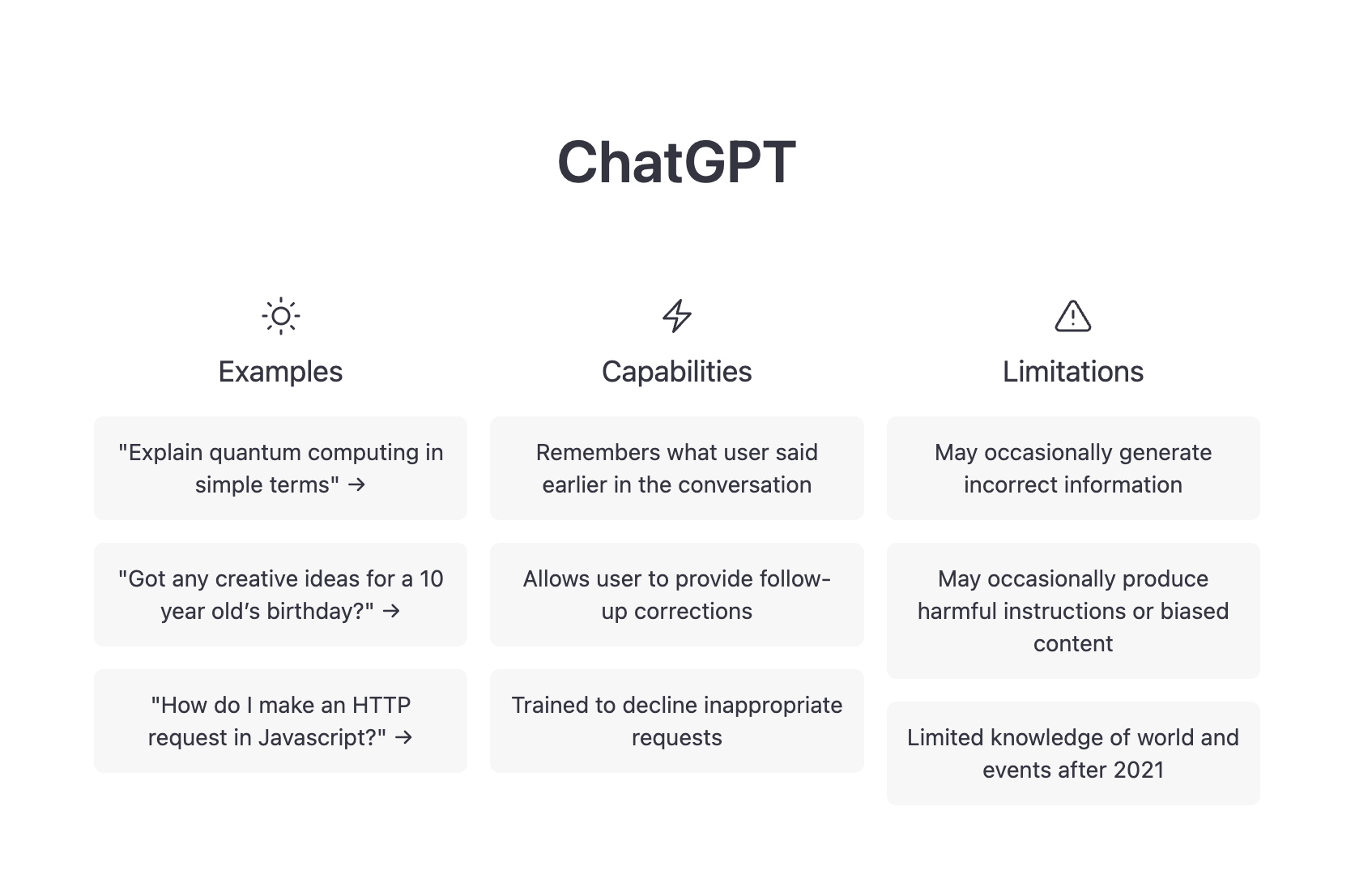
Capability access may vary
Some ChatGPT Edu models and tools may be managed through workspace roles or administrative settings. If you do not see a feature described here, it may not be enabled for your role, workspace, or current access level.
Core capabilities
At its core, ChatGPT is a conversational AI assistant. You can ask questions, provide instructions, share appropriate context, and refine the response through follow-up prompts.
Answering questions
Ask ChatGPT to explain concepts, define terms, compare ideas, or clarify unfamiliar topics.
Drafting and rewriting
Create first drafts, revise text, improve tone, simplify language, or adapt content for different audiences.
Summarizing information
Summarize documents, notes, articles, meeting materials, or long-form text when the content is appropriate to use.
Reasoning through problems
Organize options, identify assumptions, create checklists, compare approaches, or think through next steps.
Language and explanation support
Simplify, rephrase, translate when appropriate, adjust language for clarity, or explain concepts in plain language.
Organization and workflow features
Some ChatGPT features are designed to help users organize longer-running work, preserve context, or create repeatable workflows. Availability may vary by workspace setting and role.
Memory
When memory is enabled, ChatGPT may remember useful details across conversations to personalize future responses. Do not rely on memory for official records or institutional decisions.
Projects
Projects can help organize related chats, files, and instructions around a shared objective. They can support ongoing workstreams, research efforts, and recurring tasks.
Scheduled tasks
Some users may be able to schedule reminders, recurring checks, or future actions. Use this only when the task and information are appropriate.
Custom GPTs
Custom GPTs are specialized assistants configured with instructions, files, and selected tools. Create, share, and use them only according to workspace permissions and System Office guidance.
Before using a capability, ask
- Is this the right tool for the task?
- Is the information appropriate for ChatGPT Edu?
- Am I using an approved workspace, model, or feature?
- Could the prompt, file, image, or output include information that should not be shared?
- Do I need to verify facts, calculations, sources, or policy references?
- Do I know who to ask if I am unsure?
Good uses and caution areas
Good uses
- Drafting and revising appropriate content
- Summarizing approved documents
- Creating outlines, checklists, and plans
- Brainstorming options or questions
- Learning unfamiliar concepts
- Reviewing drafts for clarity and tone
Use caution
- Uploading files or screenshots
- Using sensitive or restricted information
- Relying on current facts without verification
- Using AI output for official decisions
- Interpreting policy, legal, HR, security, or compliance matters
- Sharing outputs without review
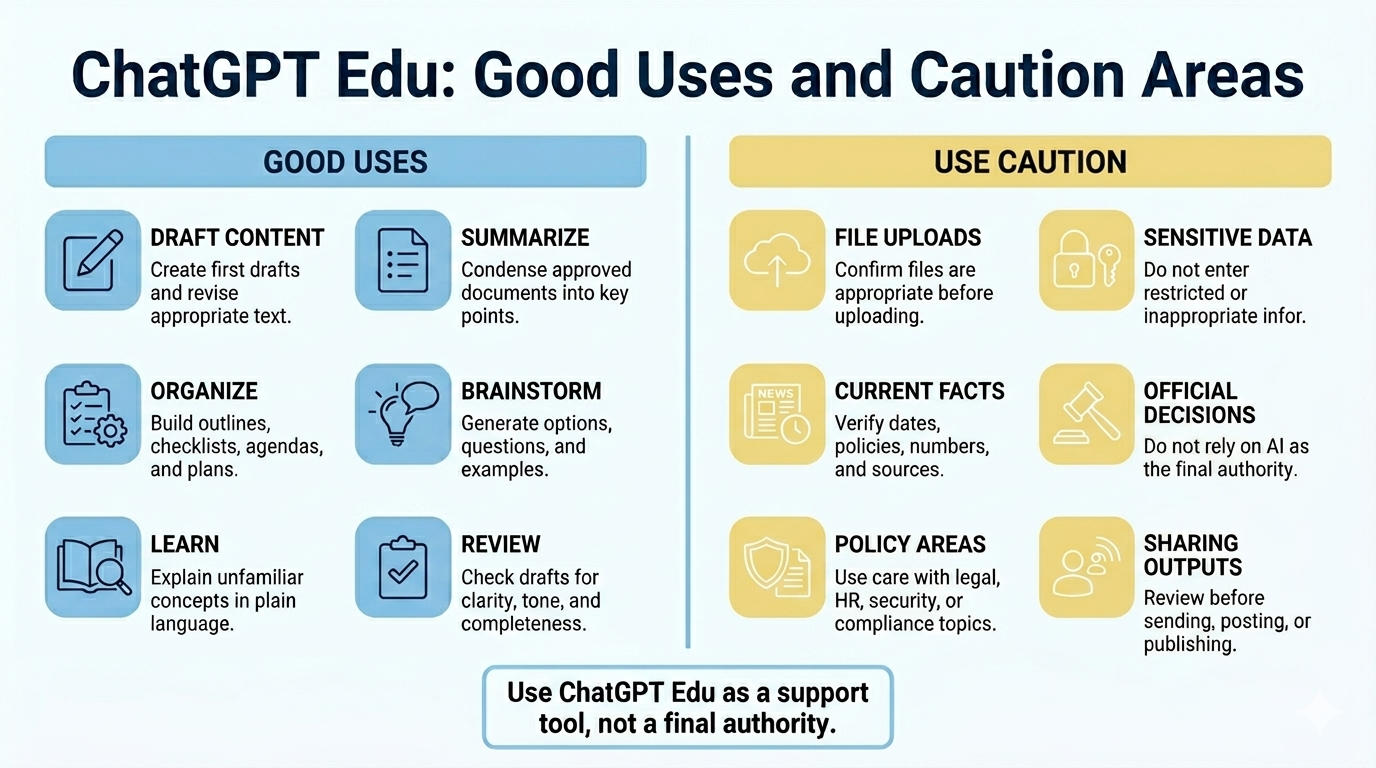
Final reminder
ChatGPT can help users work faster, think more clearly, and organize information more effectively. It should still be treated as an assistant, not a final authority. Employees are responsible for reviewing outputs, protecting appropriate data, verifying important information, and following System Office guidance.
Prompt Examples
Use these examples as starting points for ChatGPT Edu. Replace bracketed text with appropriate work context, and do not include restricted, regulated, or inappropriate information unless the use is approved.
A simple prompt formula
A helpful prompt usually states the task, provides appropriate context, explains who the response is for, and asks for a specific format. If the first response is not quite right, follow up with what to change.
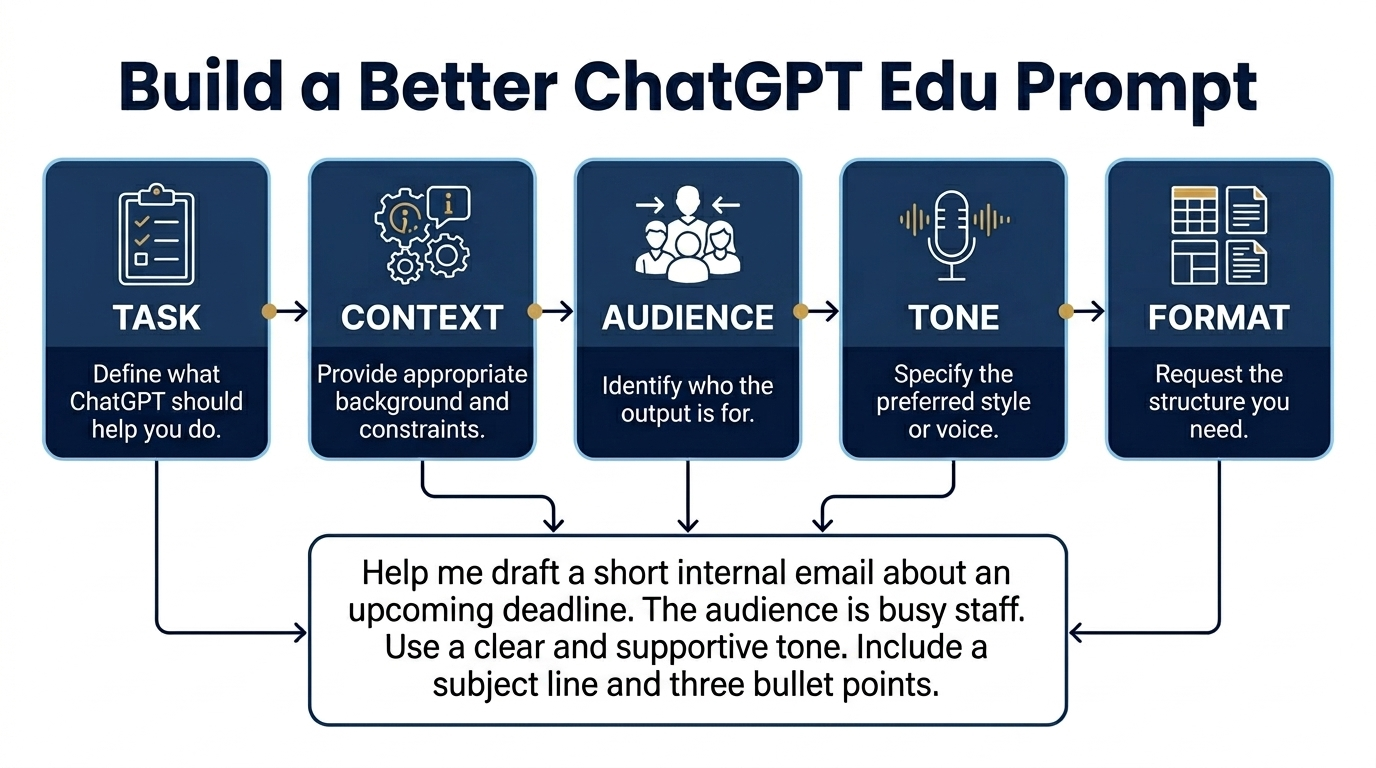
Task
What should ChatGPT help you do?
Context
What background information is appropriate to include?
Audience and tone
Who is this for, and how should it sound?
Format
What should the response look like?
Try this structure:
Help me [task]. The context is [brief context]. The audience is [audience]. Use a [tone] tone. Provide the response as [format].
Prompt safely
Prompts should include enough context to be useful, but only include information that is appropriate for ChatGPT Edu. Do not enter, paste, upload, or expose restricted, regulated, or inappropriate data in AI tools.
Useful AI Prompt Examples
Use these samples as reusable patterns. Start with the quick prompt when you need speed, then use the expanded version when the work needs more structure, review, or polish.
Writing and editing
Quick prompt:
Rewrite the following message so it is clearer, more concise, and appropriate for a professional internal audience. Keep the meaning the same and identify any wording that may be confusing.
Expanded prompt:
Rewrite the message below for [audience]. The purpose of the message is [purpose]. Use a [professional / friendly / direct / reassuring / concise] tone. Keep the meaning the same, but improve clarity, organization, and readability. Avoid jargon and remove unnecessary words. Provide a revised version, what changed and why, and any wording that may still need review.
Useful follow-up:
Make the revised version warmer and less formal, but still appropriate for an internal workplace audience.
Summarizing
Quick prompt:
Summarize the following text in five bullet points. Then list decisions, action items, deadlines, and open questions separately.
Expanded prompt:
Summarize the following text for [audience]. The purpose is [briefing / follow-up / planning / decision support / general awareness]. Keep the summary accurate and do not add information that is not clearly supported by the text. Include an overview, key takeaways, decisions, action items, open questions, and important details to verify.
Useful follow-up:
Create a shorter executive summary in one paragraph for a busy reader.
Planning
Quick prompt:
Create a project checklist for [task]. Organize it into preparation, execution, review, and follow-up. Include likely risks, assumptions, and open questions.
Expanded prompt:
Create a project plan for [project/task]. The goal is [goal]. The audience or stakeholders are [audience/stakeholders]. The desired timeline is [timeline]. Keep the plan practical and realistic. Include the objective, phases, tasks, suggested owners or roles, dependencies, risks, assumptions, open questions, and next three actions.
Useful follow-up:
Turn this into a simple timeline with suggested milestones and review points.
Meetings
Quick prompt:
Turn these notes into a meeting summary with sections for overview, decisions, action items, owners, deadlines, and open questions. Do not add decisions that are not clearly stated.
Expanded prompt:
Turn the notes below into a meeting summary for [audience]. The meeting topic was [topic]. Use a clear, professional tone. Do not add decisions, owners, deadlines, or commitments unless they are clearly stated. Put unclear items under open questions.
Useful follow-up:
Create a follow-up email based on this meeting summary. Keep it concise and action-oriented.
Learning and explanation
Quick prompt:
Explain [topic] in plain language for someone who is new to it. Avoid jargon, include a simple example, and provide a short glossary of key terms.
Expanded prompt:
Explain [topic] for [audience]. Assume the audience has [beginner / intermediate / advanced] familiarity. Use plain language, avoid unnecessary jargon, and include why it matters, a simple example, common misunderstandings, key terms, and questions a beginner might ask.
Useful follow-up:
Give me one version for senior leadership and one version for staff who are new to the topic.
Review and risk checking
Quick prompt:
Review this draft for clarity, tone, missing assumptions, unsupported claims, and possible risks. Do not rewrite it yet. First tell me what you notice.
Expanded prompt:
Review the draft below before it is shared with [audience]. The purpose is [purpose]. First review it for clarity, tone, missing assumptions, unsupported claims, possible risks, and anything that may need approval or verification. Then recommend edits.
Useful follow-up:
Now rewrite the draft using your recommended edits, but clearly mark anything that still needs human review.
Data or spreadsheet review
Quick prompt:
Review this table and identify the main patterns, outliers, and questions I should investigate further. Do not make conclusions beyond the data provided.
Expanded prompt:
Review the table or dataset below. The purpose is [purpose]. Focus on patterns, outliers, missing information, and questions for follow-up. Do not make conclusions beyond the data provided and do not assume causation.
Important reminder:
Do not use sensitive, restricted, regulated, or personally identifiable information unless the use is approved.
Communication planning
Quick prompt:
Create a communication plan for [topic]. Include audiences, key messages, channels, timing, likely questions, and next steps.
Expanded prompt:
Create a communication plan for [topic/change/initiative]. The audience groups are [audiences]. The purpose is [inform / train / encourage action / prepare for change / gather feedback]. Include objectives, key messages, channels, timing, likely questions, a draft announcement, and next steps.
Useful follow-up:
Create a shorter version of the announcement for email and a version for a web page update.
Responsible Use of ChatGPT Edu
ChatGPT Edu can help with drafting, summarizing, planning, analysis, and learning. Responsible use means choosing appropriate tasks, protecting information, reviewing outputs, and following UNC System Office guidance.
Start with this rule
Use ChatGPT Edu as a support tool, not as the final authority. You remain responsible for what you enter, upload, copy, share, or use from AI-generated output.
What responsible use looks like
Responsible AI use is not just about avoiding mistakes. It is about using the tool with the right task, the right information, and the right level of human review.
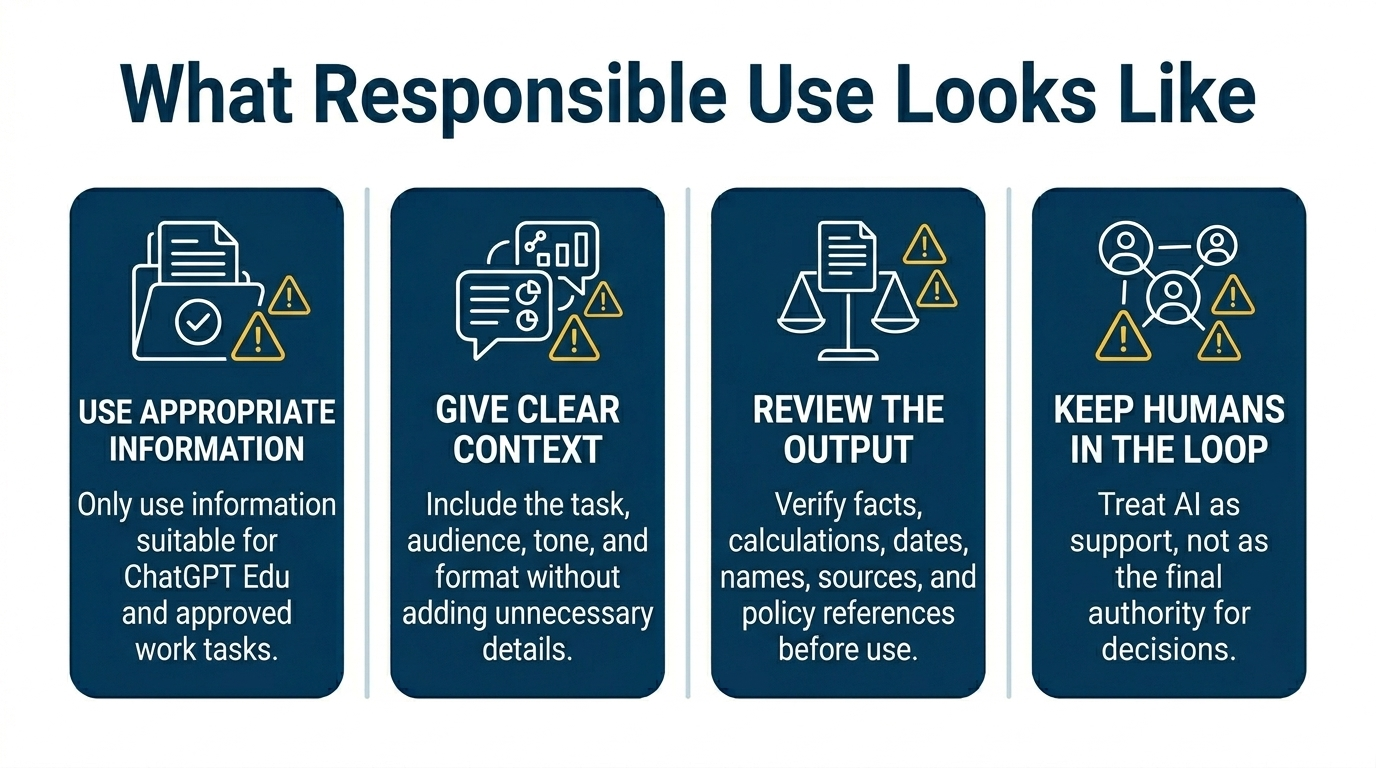
Use appropriate information
Only enter or upload information that is appropriate for ChatGPT Edu and the work task. Do not include restricted, regulated, confidential, or sensitive information unless that use has been approved.
Give clear context, not unnecessary detail
A useful prompt should explain the task, audience, tone, and desired format. Include only the context needed for the task.
Review before relying on the answer
AI responses can be incomplete, outdated, biased, or incorrect. Verify facts, calculations, policy references, names, dates, citations, and recommendations before using them.
Keep humans in the decision loop
Use ChatGPT Edu to support thinking, drafting, and organization. Do not use it as the only basis for official decisions, compliance interpretations, HR actions, legal conclusions, security decisions, or policy determinations.
Privacy and data protection
OpenAI states that, by default, ChatGPT Edu inputs and outputs are not used to train or improve OpenAI models. That privacy protection does not replace UNC System Office data handling requirements, approval workflows, or professional judgment.
Use ChatGPT Edu for:
Appropriate drafting, editing, summarizing, brainstorming, planning, learning, and review tasks where the information is suitable for the workspace.
Pause before using:
Student records, personnel matters, health information, legal or compliance issues, security details, confidential business information, credentials, or any information you would not normally share without approval.
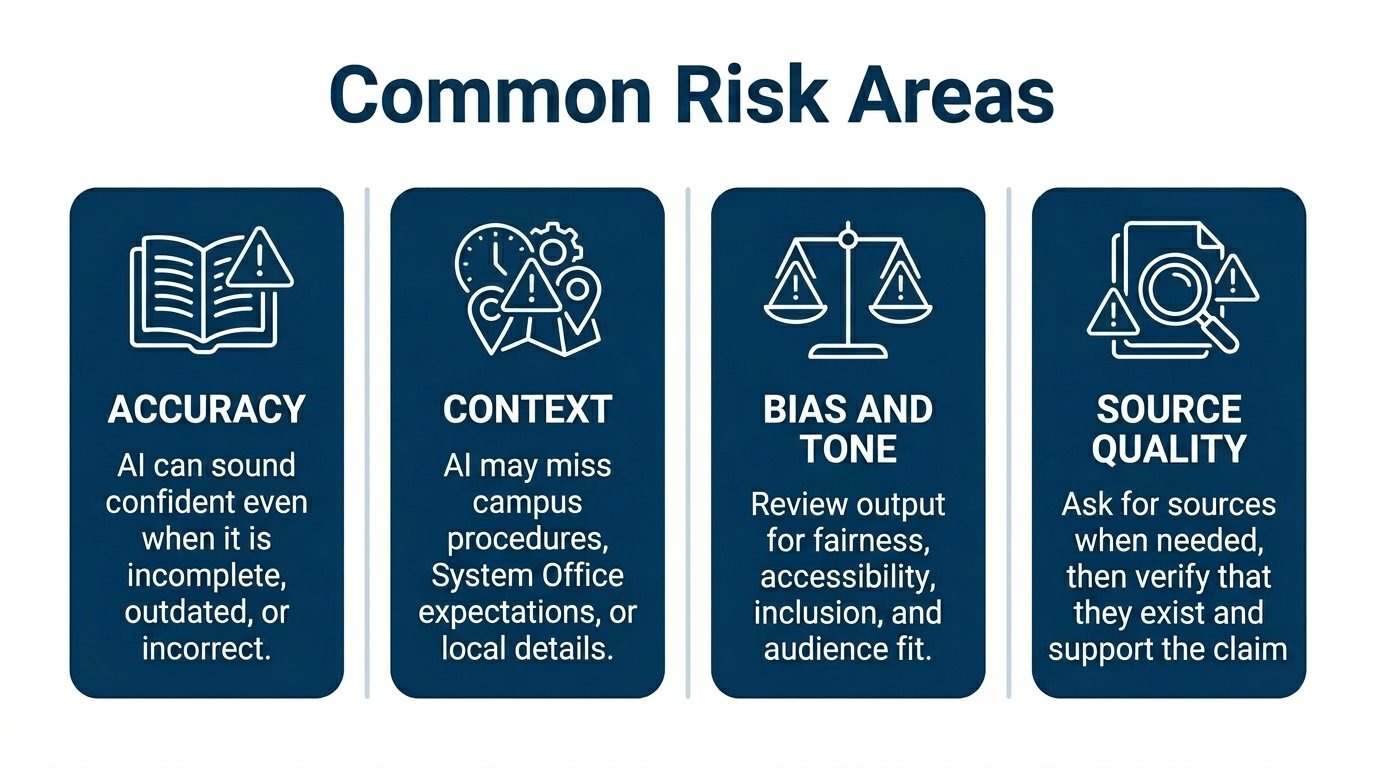
Common risk areas
Accuracy
ChatGPT may sound confident even when it is wrong. Confirm important facts using trusted sources.
Context
AI may miss institutional context, campus-specific procedures, or System Office expectations unless you provide appropriate guidance and review the result.
Bias and tone
Review output for fairness, accessibility, inclusive language, and audience fit before sharing.
Source quality
When sources are needed, ask for citations or references, then verify them. Do not assume a cited source exists or says what the response claims.
When in doubt
If you are unsure whether a task, file, screenshot, or prompt is appropriate for ChatGPT Edu, pause and ask your supervisor, data owner, information security contact, privacy contact, or other appropriate System Office resource before proceeding.
Responsible use checklist
- I am using the approved ChatGPT Edu workspace.
- The task is appropriate for AI assistance.
- The prompt does not include restricted, regulated, confidential, or sensitive information unless the use is approved.
- Any file, screenshot, or image I upload is appropriate to use in ChatGPT Edu.
- I will verify important facts, calculations, sources, dates, names, and policy references.
- I will review the response for accuracy, tone, accessibility, and audience fit.
- I will not treat the output as a final authority for official decisions.
- I know who to ask if I am unsure.
ChatGPT PDF Guides
Use this resource library to find practical guides for getting started with ChatGPT Edu, writing stronger prompts, using AI responsibly, and reviewing AI-generated work before sharing or relying on it.
PDFs will continue to evolve
These guides are intended to support learning and day-to-day use. As ChatGPT Edu access, features, and System Office guidance evolve, documents may be updated or replaced.
Getting started
Start here if you are new to ChatGPT Edu or want a quick orientation before exploring more specific guidance.
ChatGPT Quick Start Guide
A beginner-friendly overview of what ChatGPT is, what it can help with, how to begin using it safely, and what users should remember before relying on its output.
Prompting and everyday use
These guides help users turn common work needs into clearer prompts and practical AI-supported workflows.
Prompting Basics for System Office Employees
A practical guide to writing better prompts by giving ChatGPT clear instructions, useful context, an intended audience, a format, and a desired tone.
Everyday Use Cases for ChatGPT
A practical guide showing how ChatGPT can support writing, summarizing, planning, meeting preparation, communication, learning, and appropriate data review.
Responsible use and review
Use these resources when you need a reminder about data safety, appropriate use, verification, or final review before sharing AI-assisted work.
Responsible Use and Data Safety Guide
A safety-focused guide that explains how employees should think about data classification, sensitive information, restricted information, and responsible decision-making before using ChatGPT.
ChatGPT Output Review Checklist
A review checklist employees can use before copying, sending, publishing, or relying on ChatGPT-generated content.
Questions and quick reference
Use the FAQ when you need quick answers to common questions about ChatGPT Edu, appropriate use, uploads, output quality, and where to ask for help.
ChatGPT FAQ
Answers to common employee questions about ChatGPT, including document uploads, sensitive data, hallucinations, good first tasks, and where to ask for help.
Reminder
PDF guides are helpful learning resources, but the web content and System Office guidance should be reviewed for the most current instructions when information changes.
Frequently Asked Questions
These answers are intended as introductory guidance for UNC System Office employees using ChatGPT Edu. Employees should follow official System Office guidance for access, data classification, security, and responsible use.
Start with the basics
ChatGPT is the AI assistant. OpenAI is the company and platform provider. ChatGPT Edu is the education-focused workspace experience provided for approved institutional use.
This FAQ focuses on practical employee questions about access, responsible use, documents, output review, and what to do when you are unsure.
Data reminder
Do not enter, paste, upload, or expose restricted, regulated, confidential, or sensitive information unless that use has been approved. If you are unsure whether information is appropriate for ChatGPT Edu, pause and ask before proceeding.
Quick before-you-use checklist
- Am I using the approved ChatGPT Edu workspace?
- Is this task appropriate for AI assistance?
- Have I removed sensitive or unnecessary information?
- Is any file, image, or screenshot appropriate to upload?
- Will I review and verify the output before using it?
- Do I need to ask for guidance before proceeding?
Final reminder
ChatGPT Edu can help you work more efficiently, but it should be used carefully. Protect institutional data, verify important information, and follow UNC System Office guidance.