
Microsoft 365 Copilot Chat
Copilot Resource Hub
- General Info
- What You Can Do
- Access / Sign-in
- Prompt Examples
- Responsible Use
- Copilot & Microsoft 365 Apps
- PDF Guides
- FAQ
- AI Academy Videos
Microsoft 365 Copilot Chat: General Information
Copilot 365 Chat is a Microsoft work-account AI chat experience that can help UNC System Office employees draft, summarize, brainstorm, organize information, and think through everyday work tasks. It is most useful when you provide clear instructions and review the response before using it.
What Copilot 365 Chat is
Copilot 365 Chat is a conversational AI tool available through Microsoft 365. You give it a prompt, and it responds with a draft, summary, explanation, list, outline, plan, or other text-based output based on your request and the information you provide.
It can support everyday work, but it does not replace your judgment. You remain responsible for checking accuracy, tone, completeness, assumptions, and whether the output is appropriate for the intended use.
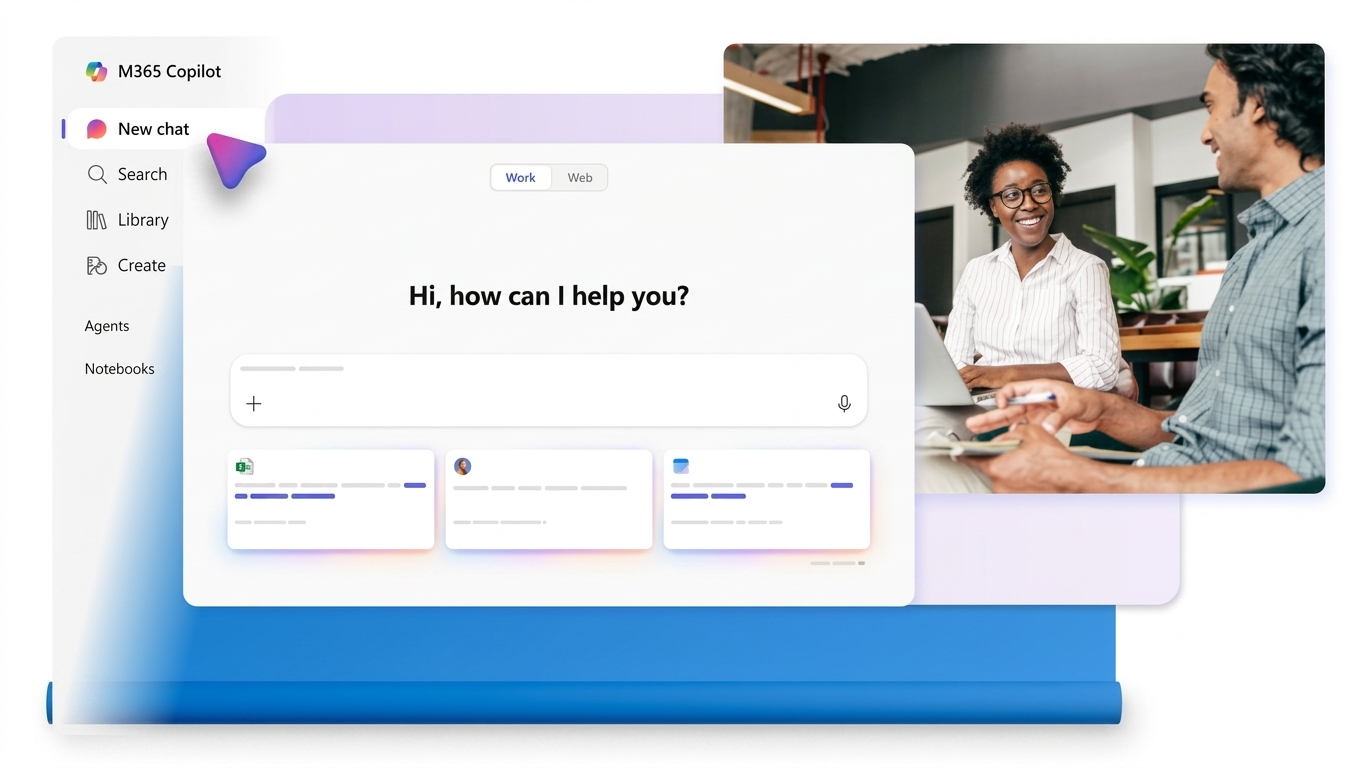
How to use Copilot Chat
The basic workflow is simple: open Copilot Chat, sign in with your Microsoft 365 work account, write a prompt, review the response, and decide what needs to be checked or revised before use.
- Open Copilot Chat and sign in with your Microsoft 365 work or school account.
- Write your request in the message box. Include the goal, audience, context, tone, and output format when possible.
- Add approved files or images only when they are appropriate for AI-assisted work and do not include Tier 3 data.
- Use available Copilot tools or the Prompt Gallery when you need help shaping a request or exploring what to ask.
- If your account includes additional Microsoft 365 Copilot capabilities, you may see options to reference people, files, meetings, or emails. Use those features only with appropriate work information.
- Send the prompt, review the response, and ask for a revision if the first answer needs a different tone, format, level of detail, or focus.
At a glance
Use it for first-pass work
Drafting, summarizing, brainstorming, outlining, planning, explaining, and organizing work that you can review.
Give it clear context
Include the goal, audience, tone, constraints, source text when appropriate, and the format you want back.
Review before use
Check facts, policy references, names, numbers, links, tone, and whether the answer fits the situation.
What access means at the System Office
A5 licensing includes Copilot Chat for eligible System Office employees. Some employees may also be assigned a Microsoft 365 Copilot license, which can provide additional paid capabilities. The features you see may depend on your assigned license, Microsoft app availability, the Copilot label shown in your account, Microsoft product updates, and System Office configuration.
Copilot Chat included with A5
Includes enterprise-grade Copilot Chat access, web data reasoning, standard access, and limited work-data reasoning such as uploaded files when available.
Microsoft 365 Copilot license
May include priority access, fuller work-data reasoning across meetings, emails, chats, files, and other Microsoft 365 content, broader agent access, included Copilot Studio access, and Copilot experiences in Microsoft 365 apps when enabled.
Microsoft video: Copilot Chat and Microsoft 365 Copilot
Microsoft provides a short overview of the difference between Copilot Chat and Microsoft 365 Copilot. This can be helpful if you see different Copilot names, labels, or capabilities across Microsoft apps.
Differences between Microsoft 365 Copilot Chat and Copilot
Watch the Microsoft 365 Copilot Help & Learning video on YouTube for a quick explanation of the difference between Copilot Chat and Microsoft 365 Copilot.
Video credit: Microsoft 365 Copilot Help & Learning on YouTube.
Do not treat Copilot as a final authority
Copilot Chat may produce incomplete, outdated, or incorrect responses. Do not use it as the final source for important facts, policies, figures, legal interpretations, personnel decisions, compliance determinations, or official institutional positions.
Good first uses
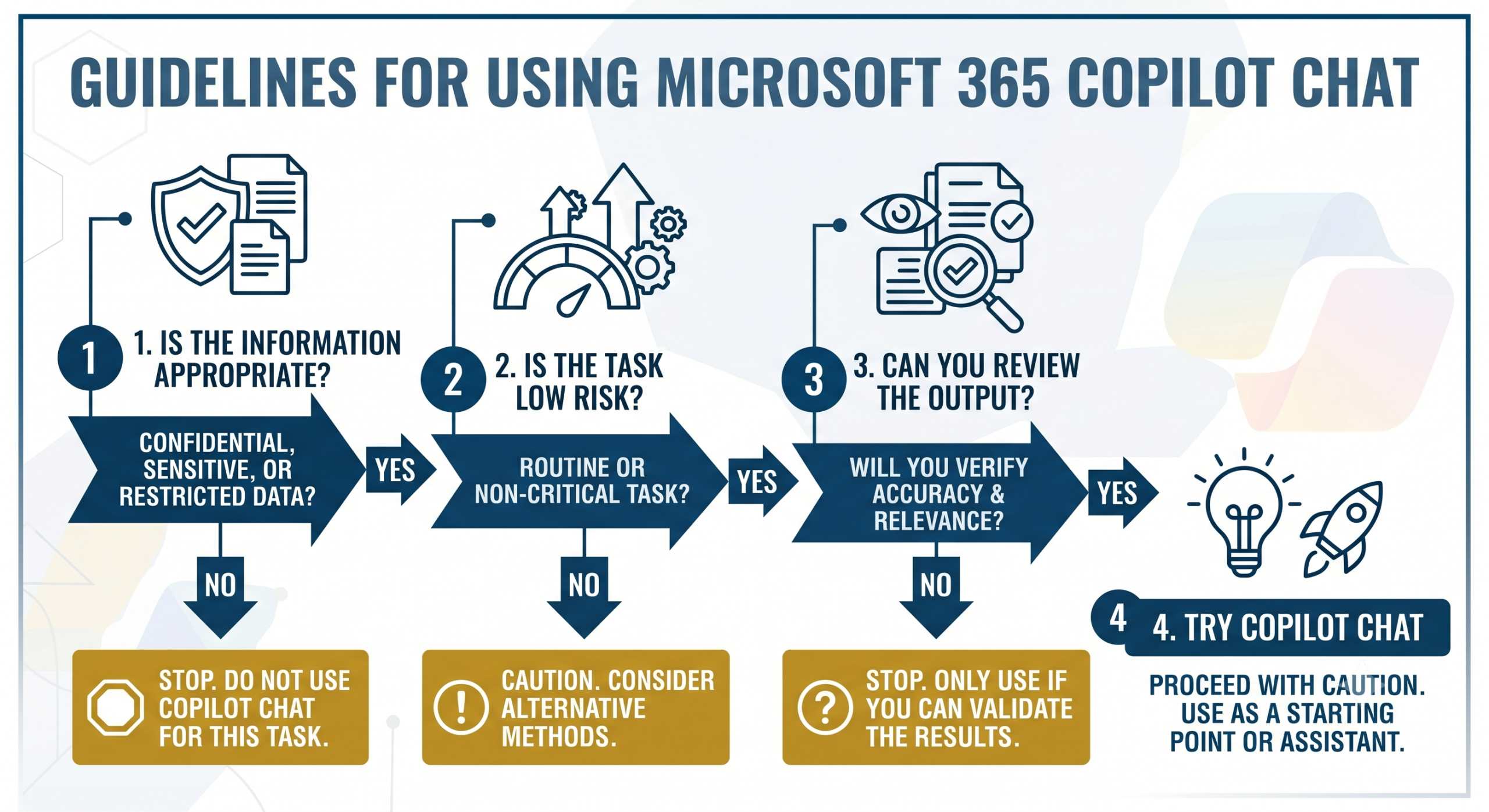
If you are new to Copilot Chat, begin with practical, low-risk tasks where you can easily review the result before using it.
- Draft or revise internal messages using context you provide.
- Summarize approved text into key points, action items, or open questions.
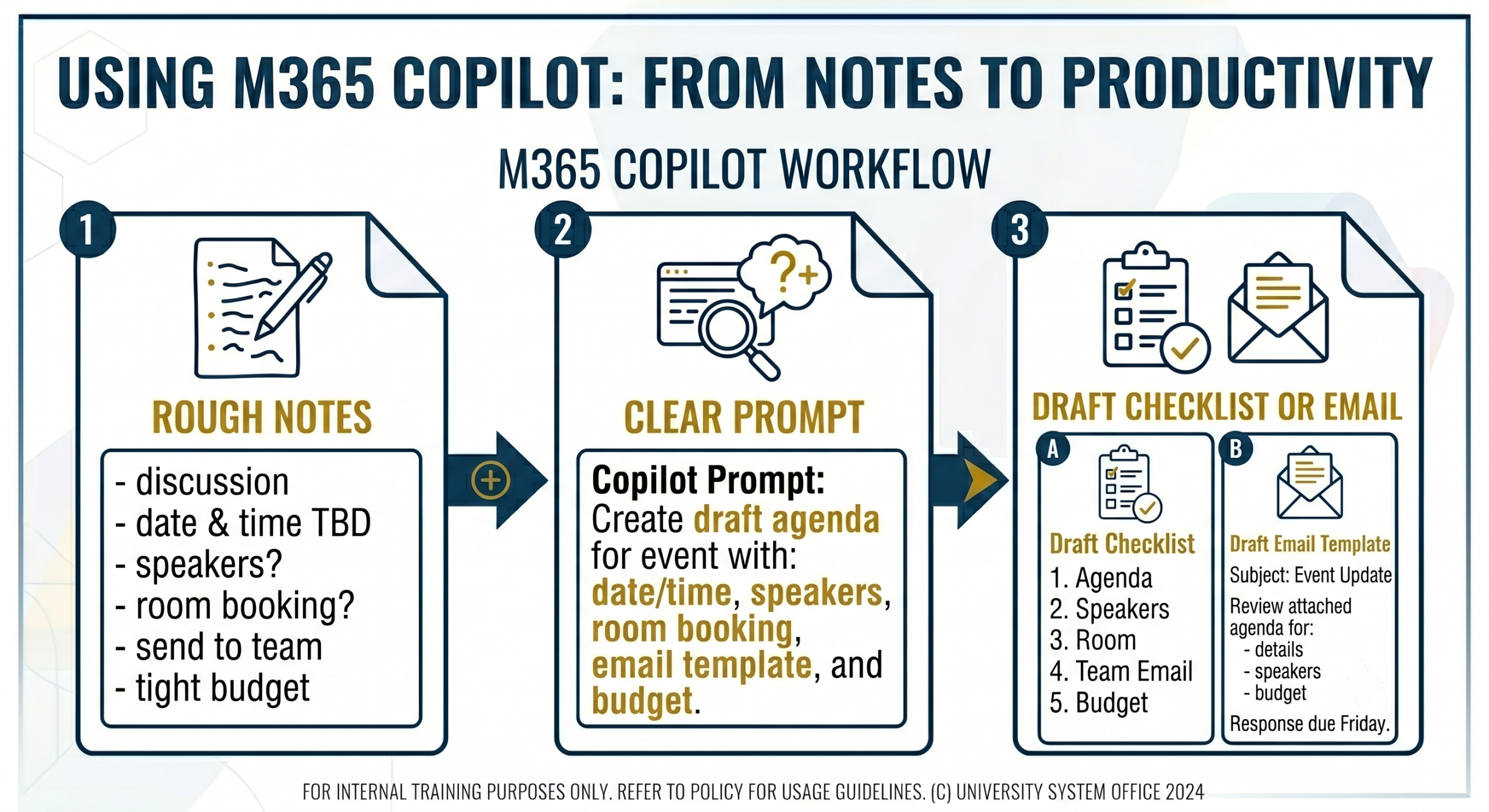
- Turn loose notes into a checklist, agenda, outline, or next-step plan.
- Ask for plain-language explanations of unfamiliar concepts or dense wording.
Before you use Copilot Chat
1. Check the information
Use only information that is appropriate for AI-assisted work. Do not enter, paste, upload, or expose Tier 3 data in AI tools.
2. Give a clear task
Include the goal, context, audience, tone, and output format.
3. Review before use
Verify accuracy, tone, completeness, assumptions, and appropriateness.
What You Can Do with Copilot 365 Chat
Copilot 365 Chat can help with everyday work tasks such as drafting, summarizing, brainstorming, organizing, preparing, and explaining information. The best results come from giving clear instructions, using appropriate information, and reviewing the output before using it.
Start with practical, low-risk tasks
A good first Copilot Chat task is useful, low-risk, and easy for you to review. Use it to create a first pass, compare options, clarify next steps, or improve wording. Avoid asking it to make final decisions, interpret policy on its own, or work with information that should not be entered into AI tools.
Common ways to use Copilot Chat
These examples are good starting points for employees who want practical help without overcomplicating the task. In each case, provide enough context for Copilot Chat to help, then review the response for accuracy, tone, completeness, and appropriateness.
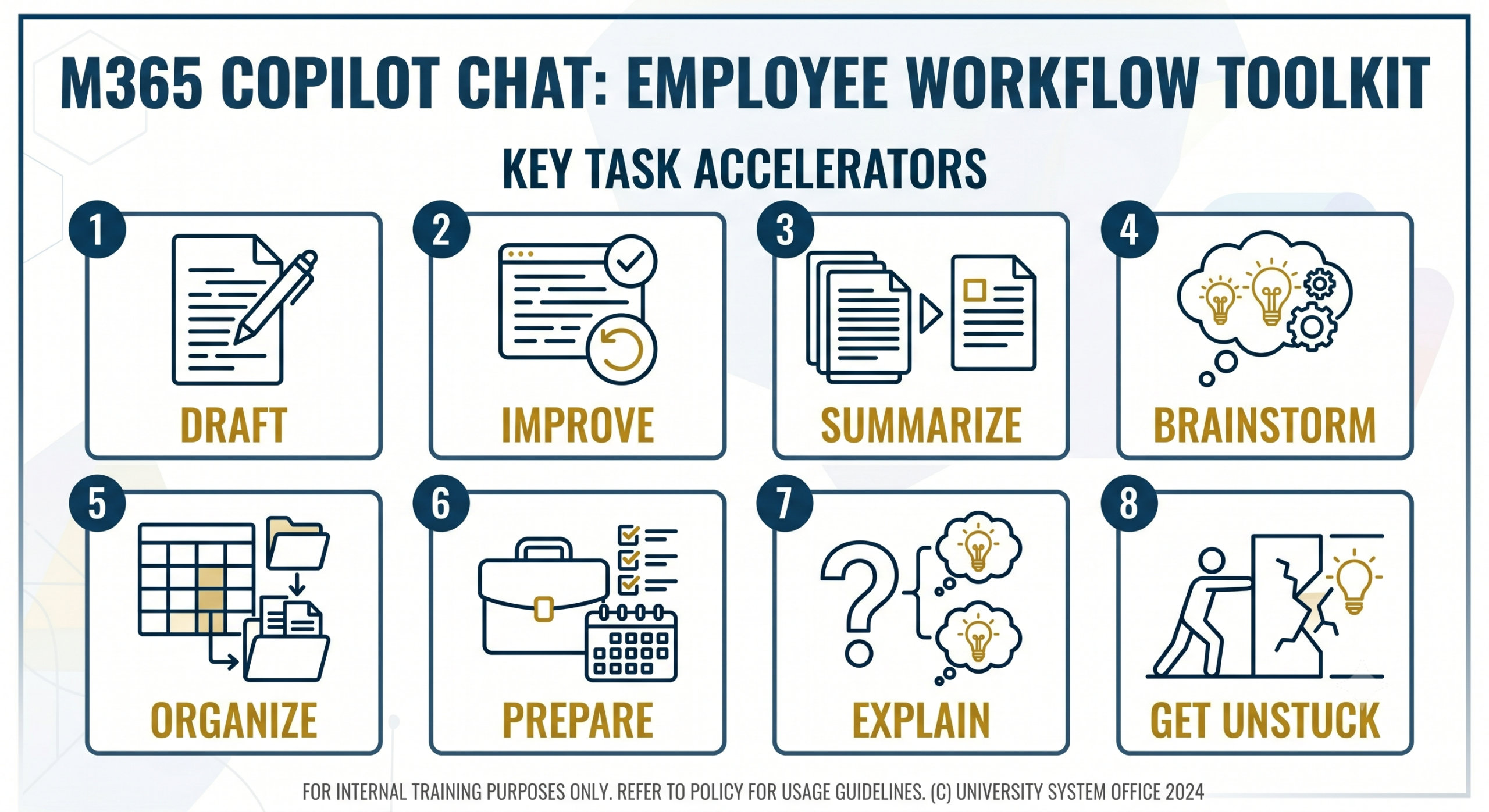
Draft work materials
Create starting drafts for emails, announcements, talking points, project updates, outlines, or plain-language explanations using details you provide.
Try: Draft a short internal email to [audience] explaining [topic]. Use a professional, clear, and helpful tone.
Improve an existing draft
Revise text to make it clearer, shorter, more polished, or better aligned with the intended audience.
Try: Rewrite this message to be clearer and more concise. Do not add new facts.
Summarize appropriate information
Summarize public webpages, approved documents, long passages, or other content that is appropriate for AI use and that you provide in the chat.
Try: Summarize this text into five key points. Then list action items, open questions, and assumptions.
Brainstorm ideas and options
Generate ideas, questions, project options, training topics, communication approaches, or possible next steps.
Try: Give me 10 practical ideas for [task]. Include one benefit and one limitation for each.
Organize work
Turn loose ideas into checklists, agendas, draft timelines, project outlines, review questions, or decision notes.
Try: Create a practical checklist for [task]. Group it into before, during, and after steps.
Prepare for meetings
Draft agendas, prepare talking points, identify stakeholder questions, or outline follow-up notes and messages.
Try: Help me prepare for a meeting about [topic]. Create an agenda, five questions, and follow-up notes.
Explain concepts plainly
Ask Copilot Chat to explain unfamiliar concepts, technical terms, or dense language in a simpler way.
Try: Explain [concept] in plain language for a non-technical employee. Include one practical example.
Get unstuck
Use Copilot Chat to clarify where to begin, what questions need answers, or what information may be missing.
Try: I need to work on [task], but I am not sure where to start. Ask me up to five clarifying questions.
A stronger way to work with Copilot Chat
Copilot Chat usually works best when you treat it as part of a workflow instead of a one-click answer machine. Give it context, ask for a useful first pass, review what it gives you, and then ask for a revision if needed.
Use judgment before you use the output
Copilot Chat can help you work faster and think more clearly, but it is not a final authority. Review outputs carefully, verify important information, and do not enter, paste, upload, or expose Tier 3 data in AI tools.
Access and Sign In to Copilot 365 Chat
UNC System Office employees can access Copilot 365 Chat with an approved Microsoft work account. Use your work account, confirm you are in the Microsoft 365 work experience, and begin with an appropriate low-risk task.
Before you sign in
Use your UNC System Office Microsoft work account when opening Copilot 365 Chat. Do not use a personal Microsoft account for System Office work.
At the System Office, A5 licensing includes Copilot Chat. Some employees may also have a Microsoft 365 Copilot license, which can provide additional paid capabilities in Microsoft 365 apps depending on license assignment, app availability, and configuration.
How to access Copilot 365 Chat
- Go to m365.cloud.microsoft/chat.
- Sign in with your approved UNC System Office Microsoft work account if prompted.
- Complete any required Microsoft sign-in or multifactor authentication steps.
- Confirm that you are using your work account, not a personal Microsoft account.
- Start with an appropriate drafting, summarizing, brainstorming, organizing, or planning task.
What you may see before signing in
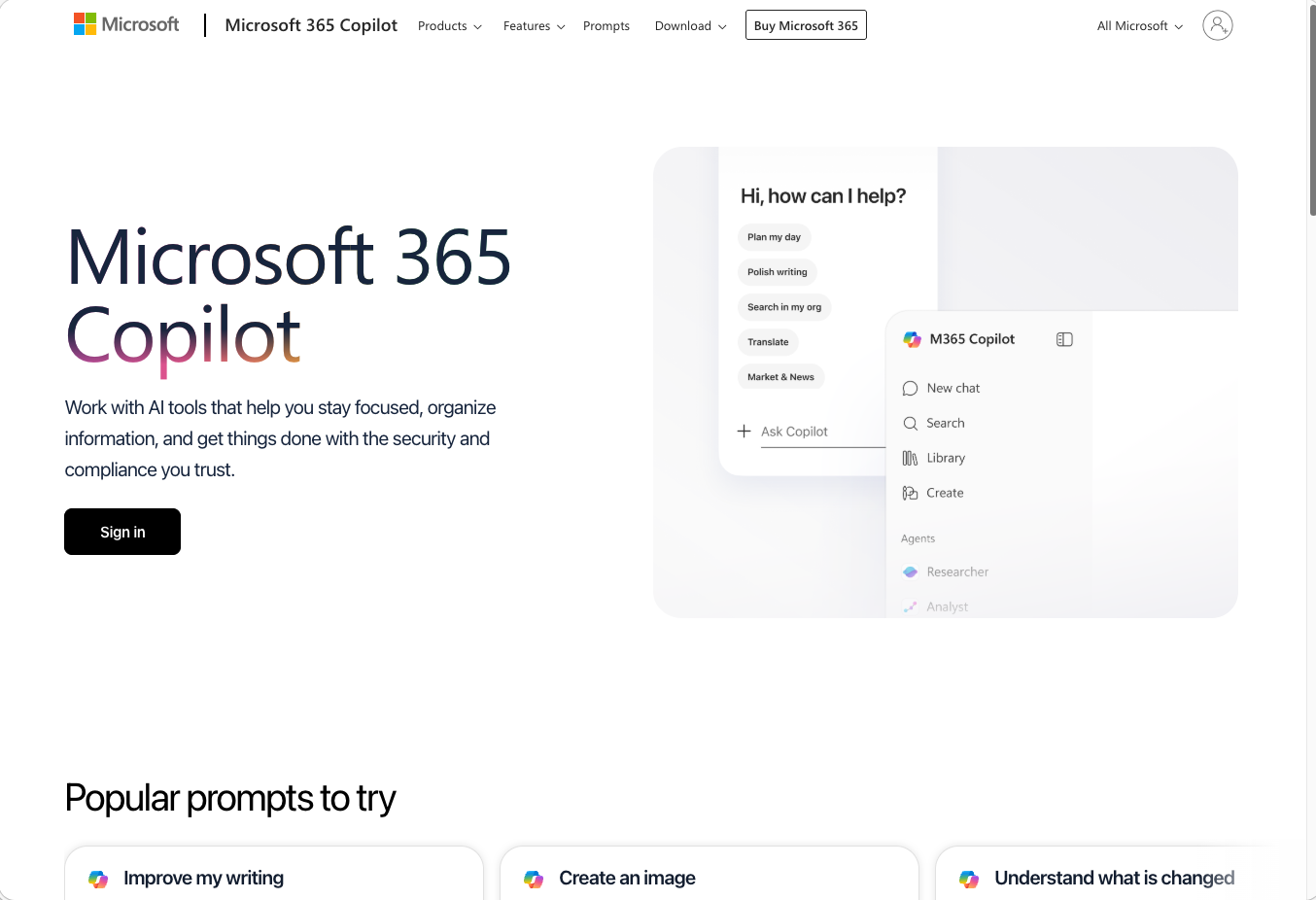
If you are not already signed in, Microsoft may show a Copilot 365 home page or sign-in screen first. Choose the sign-in option and continue with your work account.
What you should see after signing in
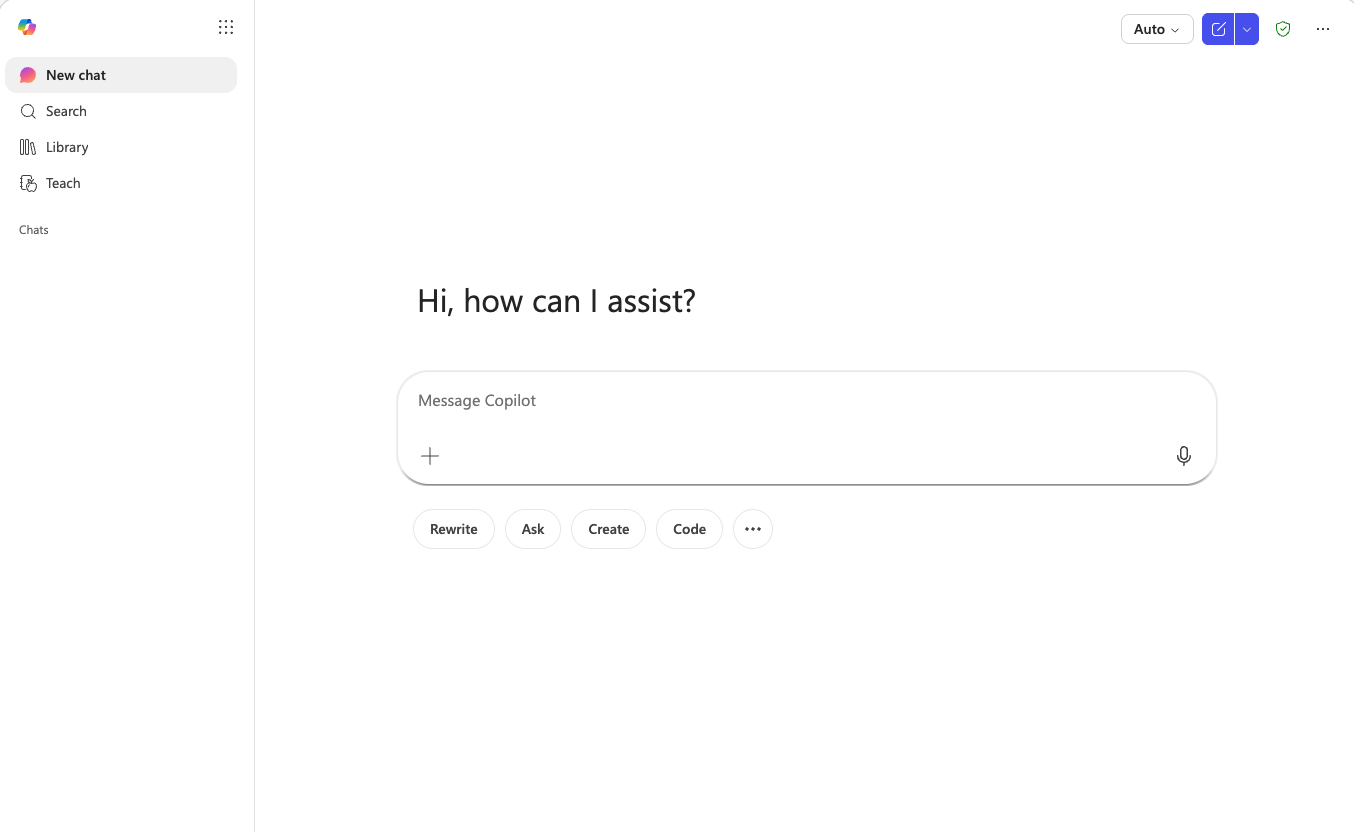
After sign-in, you should see the Copilot Chat interface with a message box where you can enter a prompt. The exact screen may change as Microsoft updates Copilot, but the experience should clearly show that you are using Copilot Chat through Microsoft 365.
If your screen looks different
- Confirm that you are signed in with your UNC System Office Microsoft work account.
- Check whether the page is asking you to sign in again or switch accounts.
- Do not continue in a personal Microsoft account for System Office work.
- Remember that license assignment and Microsoft app configuration can affect which Copilot features appear.
- If you are unsure whether you are in the correct experience, ask IT or the appropriate support contact before entering work information.
Important sign-in reminder
Use Copilot Chat as a support tool, not a final authority. Review outputs carefully, verify important information, and do not enter, paste, upload, or expose Tier 3 data in AI tools.
Prompt Examples
A prompt is the instruction you give to Copilot Chat. Effective prompts are clear, specific, and include enough context for Copilot Chat to understand what you need.
A simple prompt formula
A helpful prompt usually states the task, provides appropriate context, explains who the response is for, and asks for a specific format. Microsoft describes strong prompts as including a goal, context, expectations, and source when those details are relevant.
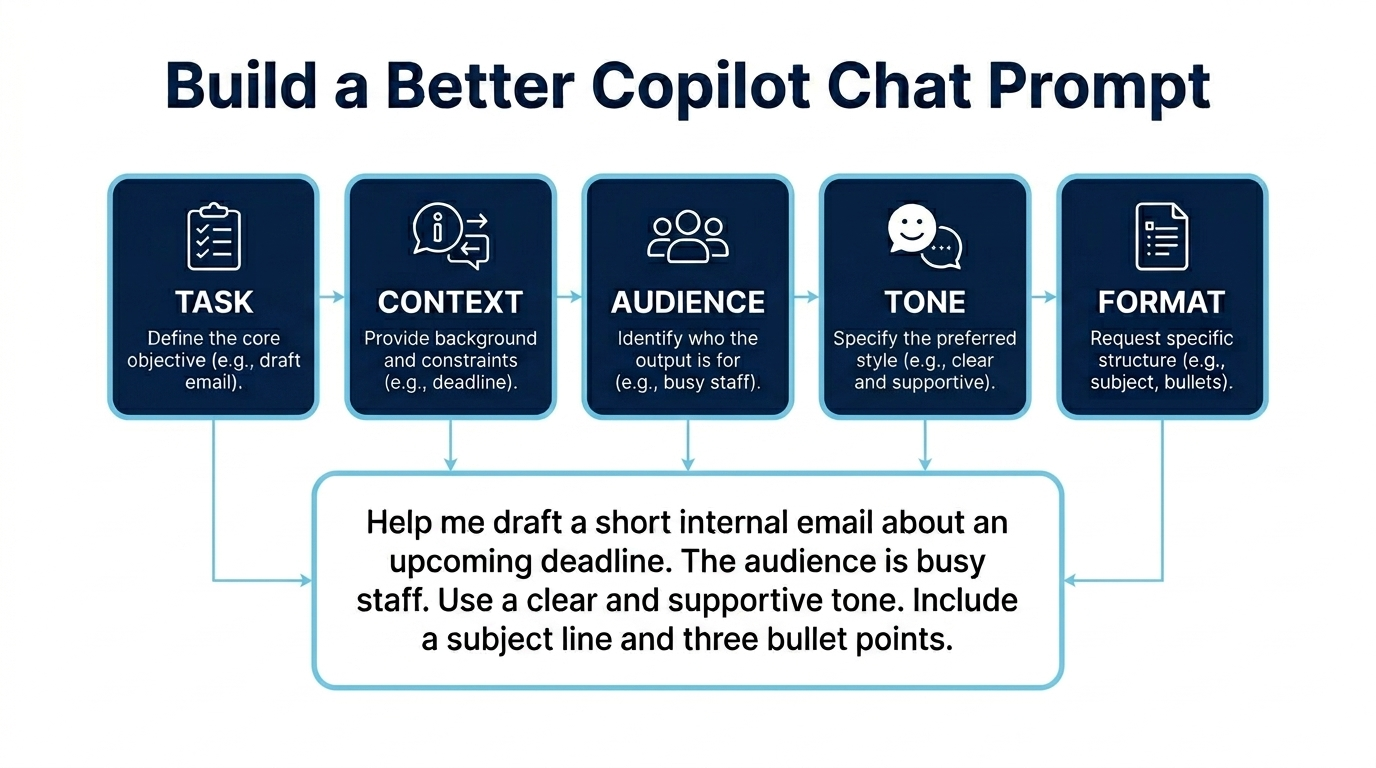
Task
What should Copilot Chat help you do?
Context
What background information is appropriate to include?
Audience and tone
Who is this for, and how should it sound?
Format
What should the response look like?
Try this structure:
Help me [task]. The context is [brief context]. The audience is [audience]. Use a [tone] tone. Provide the response as [format].
Build a better prompt
A strong prompt is not magic wording. It is a clear work request with enough detail for Copilot Chat to respond usefully.
Example prompt: Help me draft a short internal email to System Office staff about an upcoming deadline. The audience is busy employees. Use a professional, clear, and supportive tone. Include a subject line and three bullet points.
Task
Draft a short internal email.
Context and audience
System Office staff need to know about an upcoming deadline.
Tone
Professional, clear, and supportive.
Format
Subject line and three bullet points.
Tip: If the first answer is not quite right, ask Copilot Chat to revise it. You can request a shorter version, a different tone, a clearer structure, or a more specific format.
Practical prompt examples
Drafting an email with a specific tone
Example prompt: Draft a short internal email to System Office staff about an upcoming deadline. The audience is busy employees. Use a professional, clear, and supportive tone. Include a subject line and bullet points.
Creating content for slides
Example prompt: Help me create slide content for a short presentation about [topic]. The audience is non-technical staff. Provide slide titles and 3 to 4 bullet points per slide.
Summarizing approved content
Example prompt: Summarize the following approved text into five key points. Then list action items, open questions, and assumptions. Do not add facts that are not in the text.
Breaking down a complex project
Example prompt: Help me break down [project or task] into practical phases. The context is [brief context]. The audience is [team or stakeholder group]. Provide a checklist with milestones, likely blockers, and questions I should answer before starting.
Preparing for a meeting
Example prompt: Help me prepare for a meeting about [topic]. Create a brief agenda, five questions to ask, and a follow-up note template. Use a practical and professional tone.
Use only appropriate information
Prompts should include enough context to be useful, but only include information that is appropriate for AI-assisted work. Do not enter, paste, upload, or expose Tier 3 data in AI tools.
Prompt quality checklist
- Task: Tell Copilot Chat exactly what you want it to do.
- Context: Include only appropriate background information.
- Audience: Say who the output is for.
- Tone: Ask for a tone such as clear, professional, plain-language, supportive, or concise.
- Format: Request bullets, an agenda, a checklist, an email draft, or another useful structure.
- Review: Check the response before you rely on it or share it.
Responsible Use
Copilot Chat can support everyday work tasks, but employees remain responsible for protecting institutional data, reviewing outputs, and following System Office guidance.
Use Copilot Chat with judgment
Microsoft 365 Copilot Chat can help with drafting, summarizing, brainstorming, planning, and explaining information. It is intended to support your work, not replace judgment or decision-making.
Review outputs carefully before relying on them, sharing them, or using them in a document, decision, communication, or work product.
Core data reminder
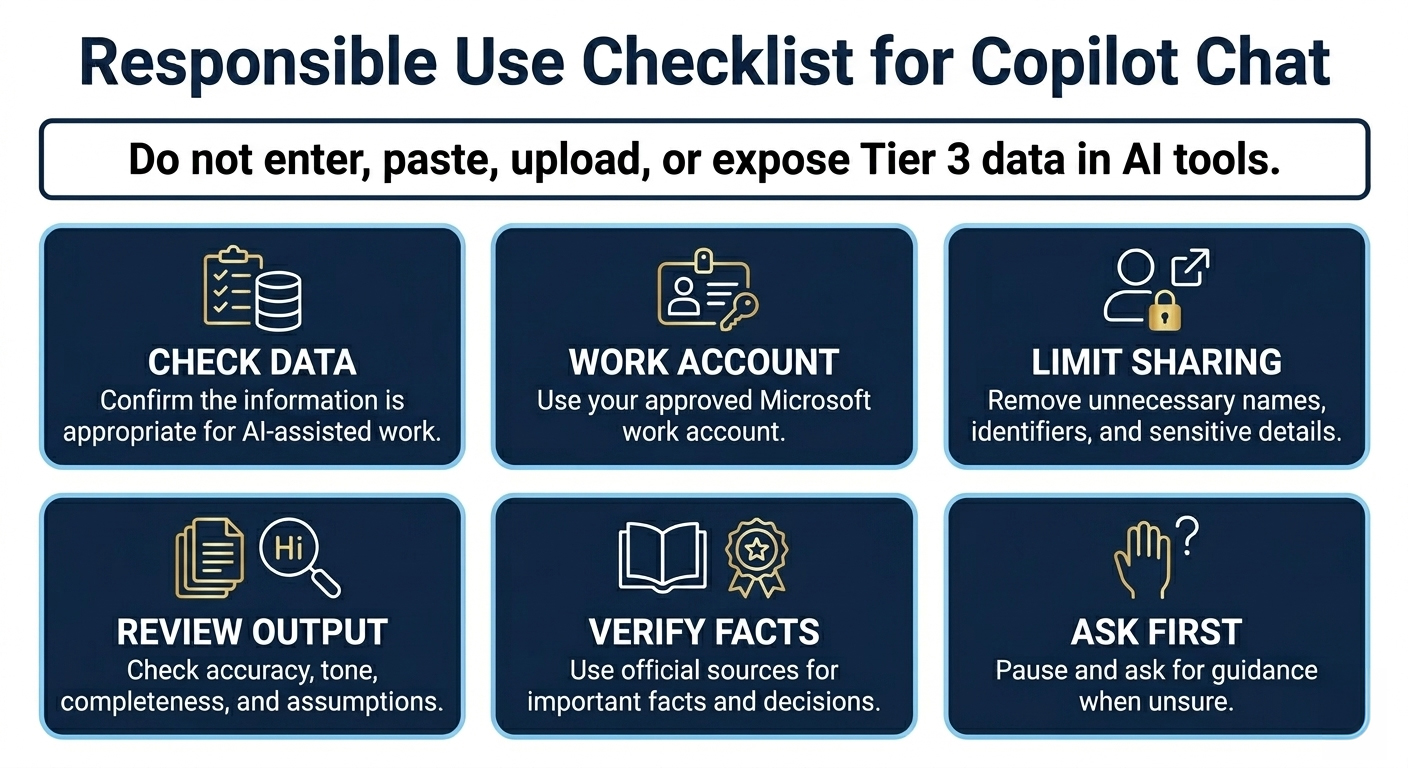
Do not enter, paste, upload, or expose Tier 3 data in AI tools. When you are unsure whether information is appropriate to use with Copilot Chat, pause and ask before proceeding.
Before you paste or upload
Use this quick check before placing work content into Copilot Chat. The goal is not to avoid AI-assisted work; it is to use the tool with the right account, the right information, and the right level of review.
1. Remove what is not needed
Names, identifiers, sensitive details, and restricted information should not be included unless they are appropriate and necessary.
2. Avoid Tier 3 data
Do not enter, paste, upload, or expose Tier 3 data in AI tools.
3. Use your work account
Use the approved Microsoft work account and approved access path for System Office work.
4. Review before use
Check the response for accuracy, tone, completeness, assumptions, and appropriateness before sharing or relying on it.
Simple rule: If the data type, file, prompt, or use case is unclear, pause and ask for guidance before continuing.
Good responsible-use habits
- Use your approved Microsoft work account.
- Start with low-risk tasks such as drafting, outlining, brainstorming, or summarizing approved content.
- Keep prompts clear and limited to what Copilot Chat needs.
- Remove sensitive or unnecessary details before prompting.
- Review and verify outputs before using them.
- Ask for guidance when data classification or appropriate use is unclear.
Remember
Copilot Chat can help you work more efficiently, but you are responsible for the final work product. Apply human judgment, protect institutional data, and follow System Office guidance.
Microsoft data protection references
Copilot Chat and Microsoft 365 Apps
System Office Copilot access is focused on standalone Copilot Chat, Outlook, and Teams. Broader native Copilot features in other Microsoft 365 apps may be available only for approved accounts based on role, need, and license assignment.
What to expect with System Office access
Most System Office employees should expect to use Copilot through three main access points: standalone Copilot Chat, Outlook, and Teams. These tools can help with drafting, summarizing appropriate information, brainstorming, planning, organizing work, and preparing communications.
Most users should not expect full native Copilot access inside every Microsoft 365 app. Some approved accounts may have additional access in apps such as Word, Excel, PowerPoint, OneNote, or other Microsoft 365 tools based on role, business need, and license assignment.
Important distinction
Seeing Copilot in Microsoft documentation, training videos, or another employee’s screen does not mean the same features are available in your account. Feature availability can depend on license assignment, Copilot label, app version, rollout status, role-based approval, and System Office configuration.
Using Copilot Chat with apps that do not have native access
Even if Copilot is not built directly into the app you are using, Copilot Chat can still help you create useful content for that app. The common workflow is simple: ask Copilot Chat for a draft, review the result, then manually move the content into the Microsoft 365 tool where you need it.
Use Copilot Chat beside the app
Open Copilot Chat in an approved access point, describe the task, and ask for content you can copy into Word, Excel, PowerPoint, SharePoint, or another approved tool.
Review before moving content
Before pasting Copilot output into an app, check accuracy, tone, formatting, assumptions, and whether the content is appropriate for the destination.
When broader app-based Copilot features appear
Some approved accounts may see additional Copilot features inside Microsoft 365 apps based on role, business need, and license assignment. If you see these features, use them according to System Office guidance and the same responsible-use expectations that apply to Copilot Chat.
- Use your approved Microsoft work account.
- Do not enter, paste, upload, or expose Tier 3 data in AI tools.
- Review outputs before using them in work products.
- Do not assume colleagues have the same Copilot features available.
- Ask IT or the appropriate support contact if a feature appears unexpectedly or if you are unsure whether it is approved for your work.
How to interpret what you see
If you see standalone Chat, Outlook, or Teams access
This is the expected access pattern for most System Office users. Use these tools for approved work tasks and review outputs before use.
If you do not see Copilot inside Word, Excel, or PowerPoint
This may be expected. Use Copilot Chat separately and move reviewed content into the app manually.
If Microsoft documentation looks different
Microsoft examples may show features that require a different license, role-based approval, a specific app version, or a feature rollout that is not available to most System Office users.
Remember
Copilot can still be valuable even when access is limited to standalone Chat, Outlook, and Teams. Treat it as a drafting and thinking partner, review its output, and move useful content into Microsoft 365 apps when appropriate.
Microsoft app and license references
PDF Guides
Downloadable guides can help employees learn Copilot Chat at their own pace. These resources are intended to support practical, responsible, and appropriate use at the UNC System Office.
Use these guides as quick references
Each guide focuses on a specific part of using Copilot Chat: getting started, writing better prompts, choosing appropriate use cases, reviewing outputs, and protecting institutional data.
Use the approved PDF links below to help employees learn at their own pace. Confirm that the guides remain current as Microsoft features, licensing, or UNC System Office guidance changes.
Before downloading or sharing
These guides should be reviewed and approved before publication. Confirm that links, support contacts, access instructions, and data-use guidance match current UNC System Office expectations.
Reminder
Do not publish downloadable guides until content, links, ownership, and responsible-use language have been reviewed. Keep the guides updated as Microsoft features, licensing, or UNC System Office guidance changes.
Frequently Asked Questions
These questions address common things employees may want to know before using Microsoft 365 Copilot Chat at the UNC System Office.
Start with the basics
Microsoft 365 Copilot Chat is a chat-based AI experience that can help with everyday work such as drafting, summarizing, brainstorming, planning, and explaining information.
This FAQ is written for System Office employees using Copilot Chat through an approved Microsoft work account. Most users should expect Copilot Chat as a separate chat tool, not full native Copilot access inside every Microsoft 365 app.
Data reminder
Do not enter, paste, upload, or expose Tier 3 data in AI tools. If you are unsure whether information is appropriate to use with Copilot Chat, pause and ask before proceeding.
Start with these questions
If you only read a few items first, review the questions about which Copilot capabilities you have, which account to use, Tier 3 data, file uploads, app access, and where to get help.
Quick before-you-use checklist
- Am I signed in with my approved System Office Microsoft work account?
- Is this task appropriate for Copilot Chat?
- Have I removed sensitive or unnecessary information?
- Am I avoiding Tier 3 data?
- Will I review and verify the output before using it?
- Do I need to ask for guidance before proceeding?
Final reminder
Copilot Chat can help you work more efficiently, but it should be used carefully. Protect institutional data, verify important information, and follow UNC System Office guidance.